Importing a CSV file
PortfolioPerformance uses a wizard to guide you through the import process, consisting of three steps. At each step, you are required to provide additional information.
Step 1. To begin, navigate to the menu File > Import > CSV files (comma-separated values). Browse to the appropriate folder and select the desired CSV file. By default, the file type filter displays only files with the .csv extension. To view all file types, select All Files (*.*) from the dropdown menu. Alternatively, you can use the shortcut Cmd + I (or Ctrl + I on Windows), followed by the letter C.
A CSV file is essentially a plain text file. The first line typically contains the names of the fields (columns), separated by a delimiter such as a comma. Subsequent lines contain the data, also separated by the same delimiter. The required fields and their format depend on the type of import being performed. While the column headings can be freely chosen, it is recommended to align them with PortfolioPerformance's field names to simplify the mapping process (i.e., associating each column with its corresponding field in PortfolioPerformance).
The example CSV file shown in Table 1 contains five fields (columns) and three rows of data, which can be used for importing securities into your portfolio.
Table 1: Example source data for importing securities.
Ticker Symbol; ISIN; Security Name; Currency; Info
BAS; DE000BASF111; BASF; ; XETRA
NVDA; ; NVIDIA; USD; NASDAQ
In this example, a semicolon (;) is used as the field delimiter. In Europe, numbers are typically written with a comma as the decimal separator; hence, a semicolon is used as the marker in this CSV file. Please note that the ISIN is not provided for the NVIDIA share. This file was created in Excel and saved with UTF-8 encoding. However, any spreadsheet or text editing program can be used to create such a file. It is worth noting that the .csv extension is not mandatory. PortfolioPerformance can also read plain text files, provided the file type filter is set to All Files (*.*) and the layout adheres to the structure shown in Table 1.
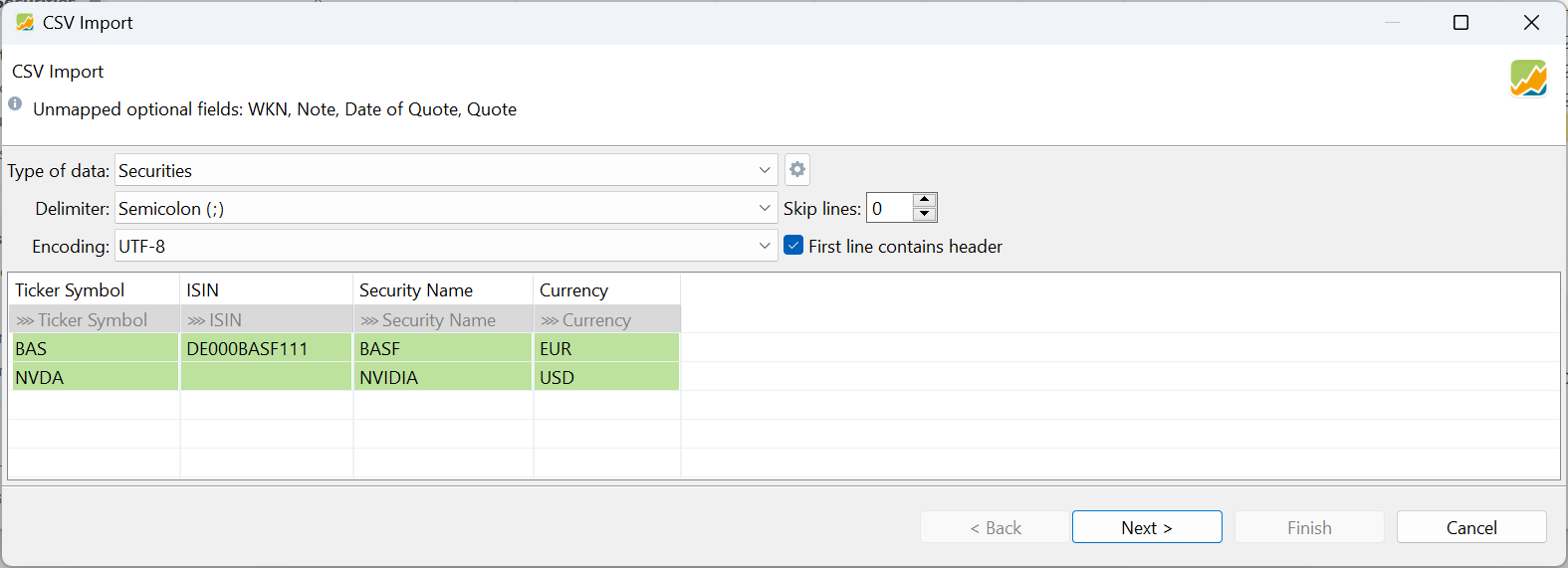
In step 2 of the wizard, you need to provide additional information, so that the CSV file could be read correctly (see Figure 1).
-
Message Bar: Additional info is displayed in the message bar at the top. For instance, it may list optional fields that are not provided in the CSV file.
Note
Although the field
Currencyis provided in the CSV file, it seems not to be recognised by PortfolioPerformance. -
Type of data: PortfolioPerformance distinguishes between 5 types of import:
Account Transactions,Portfolio Transactions,Securities,Historical Quotes, andSecurities Account(see Figure 1). These templates are discussed in detail below. Select the appropriate type by clicking the dropdown. -
Delimiter: PortfolioPerformance will probably choose the correct delimiter; a semicolon in the case of Table 1. However, you can manually set for another delimiter, e.g. comma, semicolon or tab symbol.
-
Encoding: Sometimes, "strange" characters can appear in the output table, indicating a mismatch between the chosen encoding and the source file encoding. There are numerous possibilities, and the correct choice depends on the application used to create the file. A good choice is likely
UTF-8orWindows-1250. -
Skip lines: Your CSV file may contain irrelevant information in the initial lines, such as additional titles or metadata. Use this option to specify the number of lines to skip at the beginning of the file.
-
First line contains header: Enable this option if the first line of your CSV contains the field labels, as in Table 1.
-
Preview table with Mapping fields: PortfolioPerformance needs to determine the corresponding columns from the CSV for its internal fields. If PortfolioPerformance recognises a field, it will be indicated by a message
>>> 'Field'in the second row of the preview table; otherwise, a messageDouble click herewill appear (see Figure 1). To associate a column with an internal PortfolioPerformance field, double-click the second line. You can then choose from the available fields. If you don't want to associate a field, select the---option. PortfolioPerformance will then ignore this column. To change the format of a column, e.g. Date format of a date, double-click on the name in the second line. -
Save Configuration (Gear icon): To save the current mapping, click on the gear icon to the right of "Type of data." A list of
Built-in configurationswill be displayed, such as comDirect, Consorsbank, etc. Using the optionSave current configurationwill save your current mapping configuration as a custom template. This template will be available underUser-specific Configurations. You can delete, export, and import configurations. The export function uses a JSON format.
Step 3 varies depending on the selected import type, and may involve multiple sub-steps. For example, when importing historical quotes, there is only one additional step (providing the security name to associate the historical prices). For all other import types, you must specify multiple additional details, such as the security account and the cash account.
1. Securities import
Use this type to create new securities from a CSV file. You can import eight fields (see Table 2). There are no required fields; however at least one identifying field must be present. If none of ISIN, Ticker Symbol, WKN, or Security Name is included, that row is rejected with an error. Refer to the glossary for the meaning of these terms.
Table 2: Possible fields for the Securities type import (see Table 1 for values)
| Field Name      | Required | Row 1 CSV      | Row 2 CSV |
|-----------------|----------|----------------|-----------|
| Ticker Symbol   |    N     | BAS            | NVDA      |
| ISIN            |    N     | DE000BASF111   | --        |
| Security Name   |    N     | BASF           | NVIDIA    |
| WKN             |    N     | --             | --        |
| Currency        |    N     | --             | USD       |
| Note            |    N     | XETRA          | NASDAQ    |
| Date (of Quote) |    N     | --             | --        |
| Quote           |    N     | --             | --        |
To import the example data from columns 3 and 4, the CSV file from Table 1 can be used. Please note that not all fields from Table 2 are included in the CSV file; for example, the Date and Quote fields are not present. The WKN field is included in the CSV file but has no value for either imported security. The order in which the fields are imported does not matter, and they are not imported in the same order as shown in Table 1.
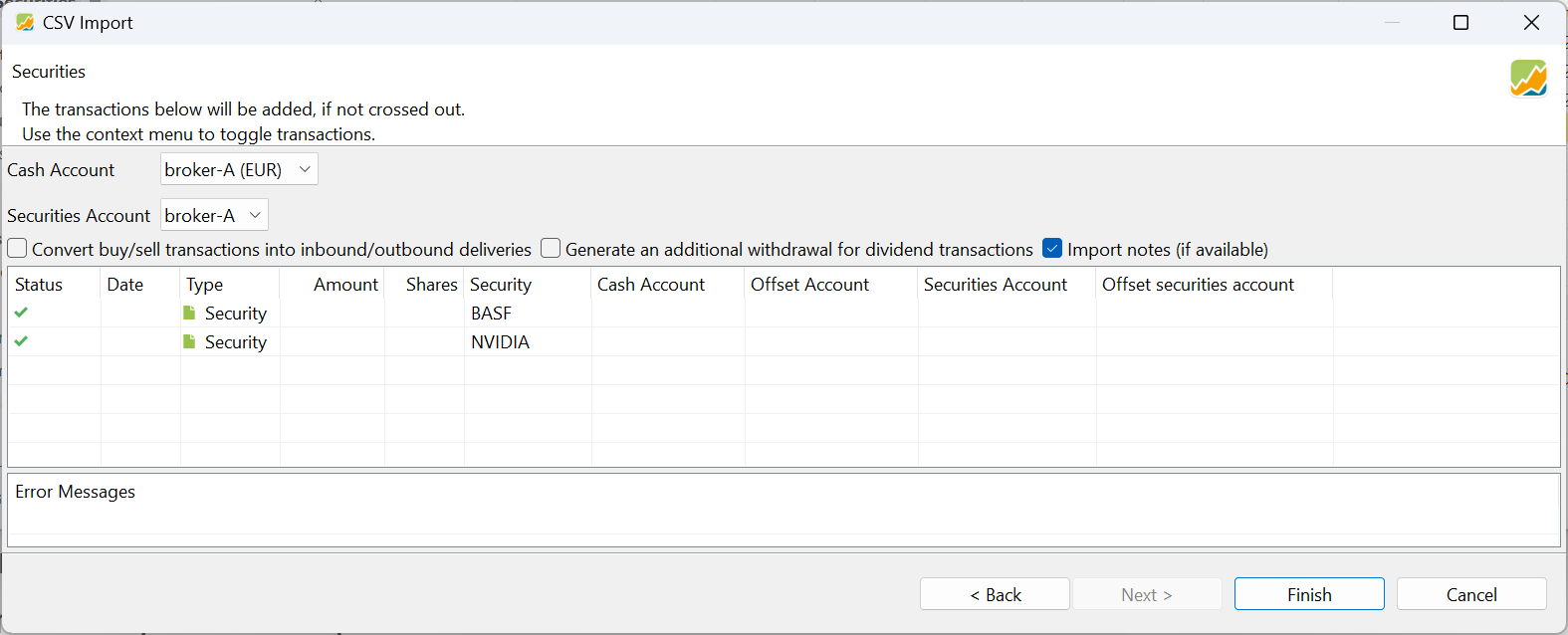
As shown in Figure 2, two securities will be added to the portfolio, namely BASF and NVIDIA. The first three fields are correctly recognised. The fields Currency and Info are not recognised automatically and should be mapped by double-clicking the second row and selecting the correct label (i.e. Currency (sic!) and Note). Although the BASF security is traded on XETRA (e.g. BAS.DE), the ticker symbol from the CSV-file does not reflect this. The ISIN code for the second security (NVIDIA, traded on NASDAQ) is not available in the CSV file. Note also that the NVIDIA stock is traded in USD. The currency of the BASF share is not provided; therefore, the base portfolio currency (EUR) is used. Importing this CSV file will display the dialogues shown in Figures 2 and 3.
In step 3-2 (below), you can observe that the status of both securities is marked with a green check mark, indicating that the import process is ready to proceed successfully. If a security already exists in the portfolio, the green check mark will not appear. In this step, you can also specify the Cash and Securities account, the security is associated with. Click Finish to finalise the import process.
Note
The cash account and security account could be set globally for all import rows of the CSV file through the top panel; see Figure 3. You can also provide this information as part of the CSV file (include a column Account and Securities account). Or you can set the accounts through the context menu. Right-click on a row in the table preview and choose the appropriate account.
The securities are now created and appear in the All Securities list. Please note that several other fields such as Calendar, Additional Attributes, and Taxonomies cannot be added through CSV import. The Quote Feed for the Historical Prices could partially be added in the following step (see Figure 4).
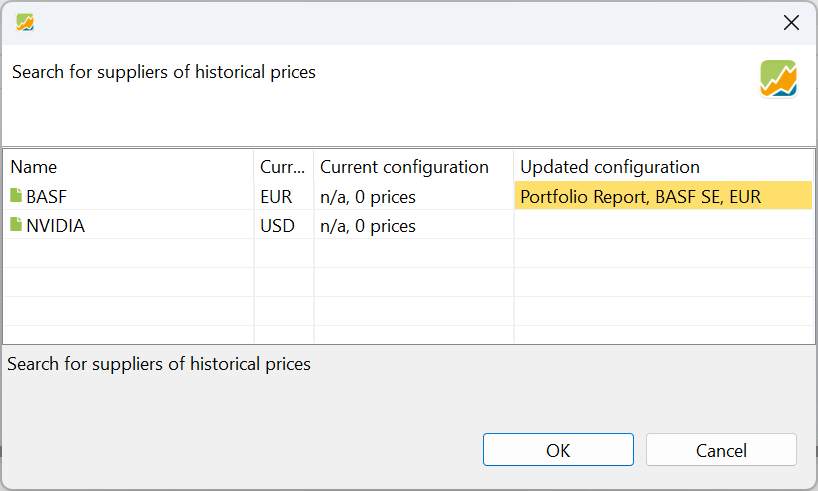
After the securities are created, an additional step allows you to search for a suitable quote feed. Both Yahoo Finance and the built-in PortfolioPerformance provider are searched. The updated and yellow-coloured configuration is the one that will be applied, unless you click the button Do not change configuration. You must be logged in (see built-in provider) to effectively read the historical quotes from the built-in provider. Clicking Cancel will skip this step, and OK will read the historical prices. Note that the ISIN of the NVIDIA share is filled in and that the ticker symbol is adjusted to the correct BAS.DE.
2. Historical Quotes import
The historical prices of most securities are covered by the built-in quote provider or other sources (see above). However, sometimes you may need to import historical prices via a manually created CSV file. For this, you only need two columns in the CSV file: one for the date and another for the corresponding quote. Both are required fields. There are no optional fields. The security's name for those historical prices must be provided in a second step. You cannot proceed to the next step if any of the required fields are missing or misspelled.
Table 3: Possible fields for the Historical Quotes type import
| Field Name      | Required | Row 1 CSV   | Row 2 CSV  |
|-----------------|----------|-------------|------------|
| Date            |    Y     | 2024-01-09  | 2024-01-08 |
| Quote           |    Y     | 22,51       | 22,54      |
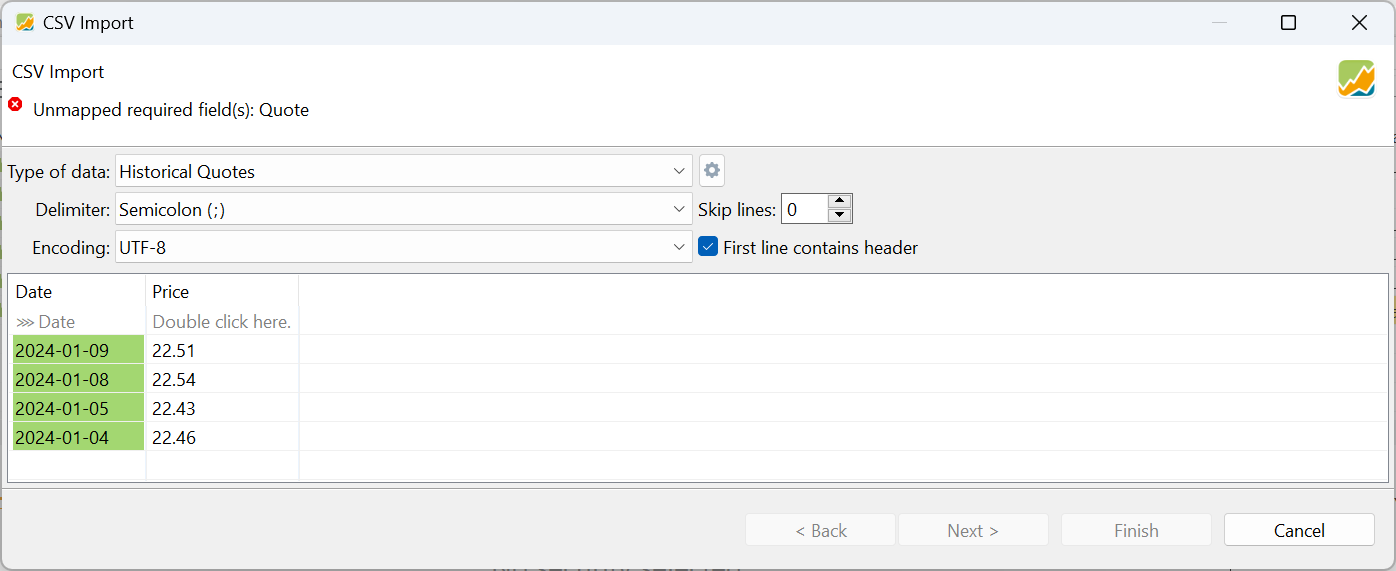
Please note that the date in Figure 5 is in the format YYYY-MM-DD. By double-clicking on the second row of the output panel; e.g. >>> 'Date', you can select a different date format; for example MM-DD-YY or dd-MMM-yyyy (current language), e.g. 01-Feb-2026. Pick the correct one from the 20+ list.
In Figure 5, the Next and Finish buttons are greyed out because not all necessary information is available. The message at the top, "Unmapped required field(s): Quote," provides a clue. In the CSV file, a field named Price is used. This should be mapped to the internal Quote field. Double-click on the column and select the appropriate mapping field, e.g. Quote. The Next and Finish buttons will then become available. There, you can also choose between the decimal point or comma.
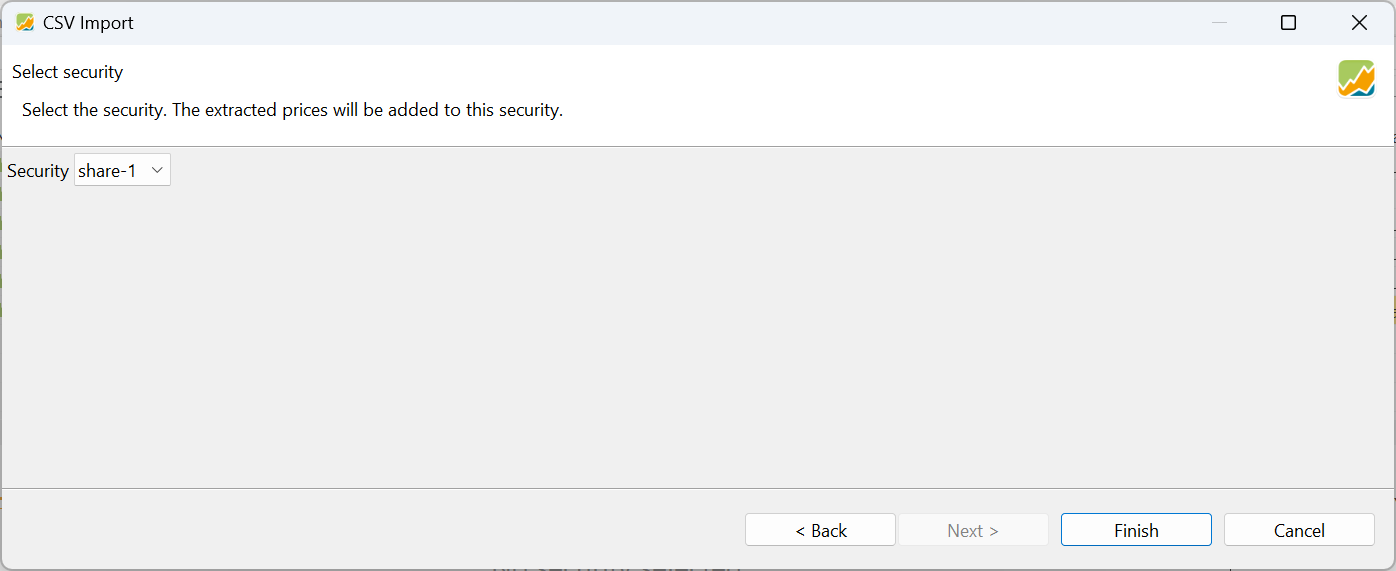
In a further step of the wizard, you can select the security to which prices will be added. If the chosen security already has historical prices, new quotes will be appended, rather than overwriting existing data.
3. Securities Account import
With this import type, you can create a new security (see above) while adding the first Buy transaction at the same time. Table 4 shows the accepted fields; only shares and Value are required, and one of Ticker Symbol, ISIN, WKN, or Security Name is needed. You can provide a Quote and a Date of Quote. This will result in the creation of one historical price on that date. However, this quote is not used to calculate the value of the transaction (e.g., Value = Shares x Quote). Just as in the manual creation of a Buy transaction, you can create a transaction with a 'quote' different from the historical prices. In example 1 from Table 4, the calculated quote for the transaction is 45 EUR (=900/20).
Table 4: Possible fields for the Securities type import
| Field Name         | Required | Row 1 CSV      | Row 2 CSV |
|--------------------|----------|----------------|-----------|
| Shares             |    Y     | 20             | 5         |
| Value              |    Y     | 900            | 750       |
| Ticker Symbol      |    N     | BAS            | NVDA      |
| ISIN               |    N     | DE000BASF111   | --        |
| Security Name      |    N     | BASF           | NVIDIA    |
| WKN                |    N     | --             | --        |
| Currency           |    N     | EUR            | USD       |
| Note               |    N     | --             | --        |
| Date of Quote      |    N     | --             | --        |
| Quote              |    N     | --             | --        |
| Date of Value      |    N     | 2026-04-05     | 2026-04-06|
| Time               |    N     | --             | --        |
| Cash Account       |    N     | --             | --        |
| Securities Account |    N     | --             | --        |
Two securities will be created and at the same time two Buy transactions will also be recorded (20 shares of BASF for a total value of 900 EUR and 5 shares of NVIDIA for a total value of 750 USD). It is not possible to include Fees or Taxes. For that, you need the Account Transactions or Portfolio Transactions import types (see below).
As can be seen in Figure 7, the security and cash account can be specified, both through the dialogue box (top half) or via the CSV-file. The value of the CSV file takes precedence. Only, if they are not provided in the CSV-file, the program reverts to the user-selected accounts.
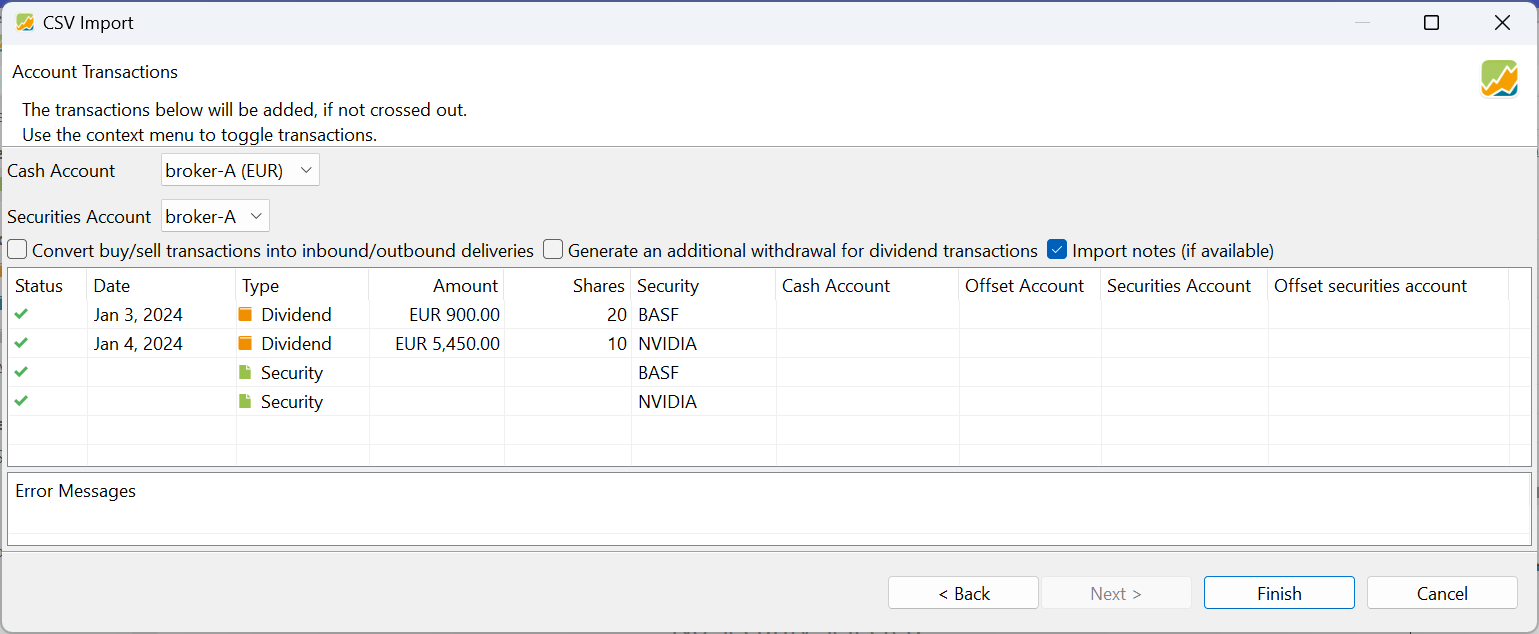
Please note that, because the Currency of the security is set to EUR or USD, the correct deposit account could be selected automatically.
4. Account Transactions import
The Account Transactions import type is used to register transactions on a deposit or cash account such as deposits, withdrawals, interest, etc. This is equivalent to manually recording a transaction using the menu option Transaction (third group). The required fields are Date and Value.
Important
The Account Transactions and Portfolio Transactions import types are quite similar. Internally, an account transaction is reserved to work with cash accounts and their transactions such as deposits. A portfolio transaction works with instruments and their transactions: buy, sell, delivery, ... However, a buy/sell transaction has both components: something is added/removed from the securities account and some money is deducted/added to the cash account. In this case, both import types could be used.
 Good practice!!!
Use Account Transactions type for deposit, withdrawal, ... and Portfolio Transactions type for buy, sell, ...
Table 5: Possible fields for the Account Transactions type import
| Field Name            | Required | Row 1 CSV       | Row 2 CSV       | Row 3 CSV           | Row 4 CSV       |
|-----------------------|----------|-----------------|-----------------|---------------------|-----------------|
| Value                 | Y        | 150             | 150             | 100                 | 2               |
| Date (of Value)       | Y        | 2026-03-04      | 2026-03-04      | 2026-03-04          | 2026-04-06      |
| Time                  | N        | --              | --              | --                  | --              |
| Type (1)              | N        | Withdrawal      | Deposit         | Transfer (Outbound) | Fees            |
| Shares                | N        | --              | --              | --                  | --              |
| Ticker Symbol         | N        | --              | --              | --                  | --              |
| ISIN                  | N        | --              | --              | --                  | --              |
| Security Name         | N        | --              | --              | --                  | --              |
| WKN                   | N        | --              | --              | --                  | --              |
| Note                  | N        | --              | --              | --                  | --              |
| Gross Amount          | N        | --              | --              | 110                 | --              |
| Fees                  | N        | --              | --              | --                  | --              |
| Taxes                 | N        | --              | --              | --                  | --              |
| Transaction Currency  | N        | --              | --              | --                  | --              |
| Currency Gross Amount | N        | --              | --              | USD                 | --              |
| Exchange Rate         | N        | --              | --              | --                  | --              |
| Cash Account          | N        | broker-B (EUR)  | broker-A (EUR)  | broker-A (EUR)      | broker-A (EUR)  |
| Securities Account    | N        | --              | --              | --                  | --              |
| Offset Account        | N        | --              | --              | broker-A (USD)      | --              |
Type in Table 5 are Deposit, Withdrawal (or removal), Dividend, Interest, Interest Charge, Fees, Fees Refund, Taxes, Tax Refund, Transfer (Inbound), Transfer (Outbound). Buy and Sell are also possible, but as mentioned before, it is good practice to use the Portfolio Transactions type for this. As can be seen in Table 5, Type is optional. If omitted, a Buy transaction is assumed if Value is negative, and Sell if Value is positive.
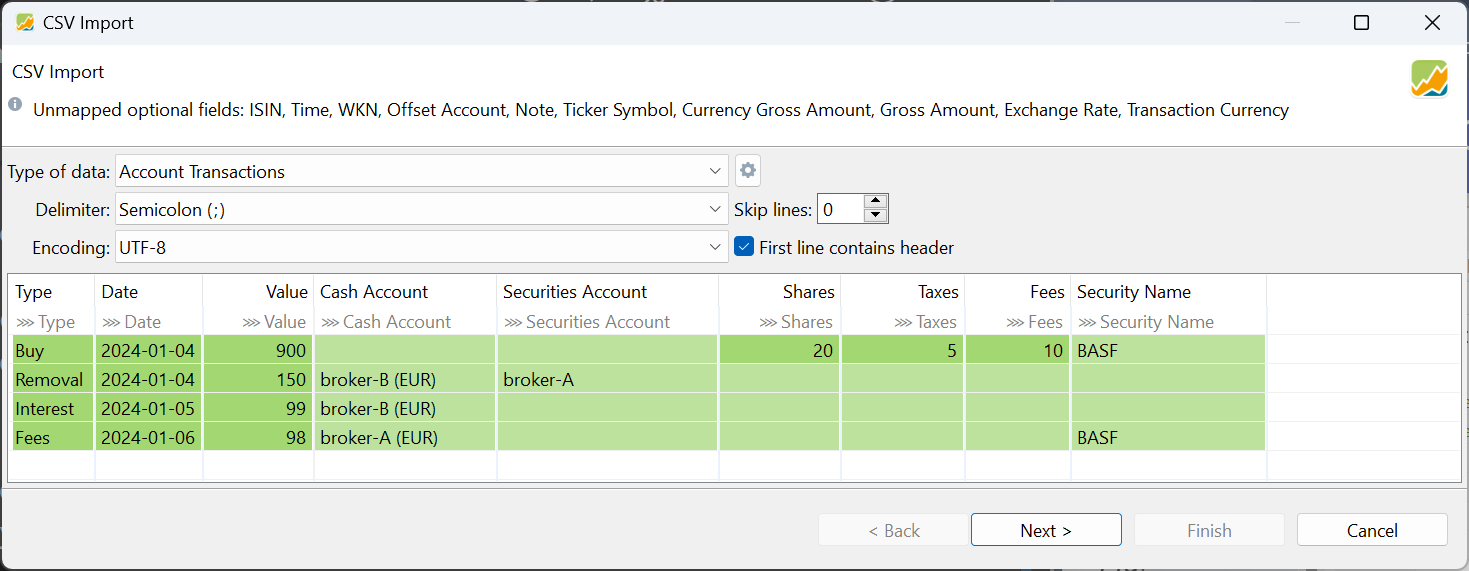
Table 5 & Figure 8 show the four transactions, that are recorded in the CSV-file. Please note that only a fraction of the allowed fields have an actual value:
- A withdrawal of 150 EUR from deposit account
broker-B (EUR)on 2026-03-04 - A deposit of 150 EUR to deposit account
broker-A (EUR)on 2026-03-04 - A transfer of 100 EUR from deposit account
broker-A (EUR)to deposit accountbroker-A (USD). Because the target account is set in USD (= Currency Gross Amount), the CSV file also specifies theGross Amount(= 110 USD). This comes down to anExchange Rateof 0,9091 USD/EUR. Currently, it is not possible to specify the Exchange Rate and let PortfolioPerformance calculate theGross Amount. It is better to use a Transfer transaction to handle this situation, instead of a Withdrawal of 100 EUR frombroker-A (EUR)and a Deposit of 110 USD into broker-A (USD). Deposit and withdrawal transactions are considered external in Portfolio Performance and will therefore affect the performance calculation. This transfer, however, is purely internal and should not affect performance in any way. - A fee of 2 EUR, payable by
broker-A (EUR)account for the currency exchange.
Figure 8 shows the result of this import. Please take note that the fields Gross Amount and Currency Gross Amount are not shown in this preview but have indeed been registered.
Dividend transaction
It is important to note that dividend transactions should be handled separately due to their unique complexities, particularly with foreign dividends. For example, challenges may arise when a dividend paid in one currency is deposited into an account denominated in another currency.
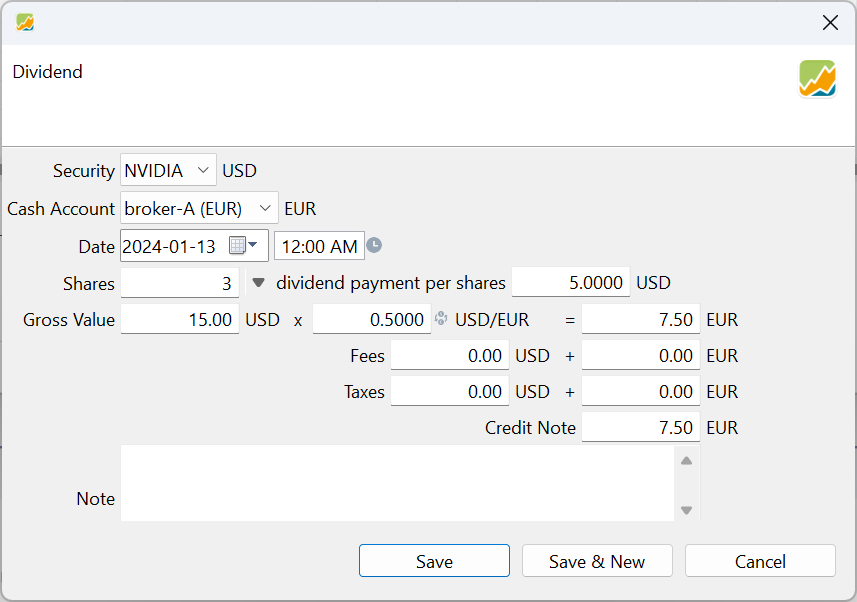
Let's consider a USD dividend of 5 USD/share for three shares, yielding a Gross Amount of $15. This dividend is converted to EUR and deposited into the broker-A (EUR) deposit account. It would amount to €14 as a result of an exchange rate of 0.9333 EUR/USD.
The CSV file contains columns for the date, transaction type (e.g. dividend), security name (NVIDIA), and number of shares.
Date; Type; Security Name; Shares; Value; Cash Account; Gross Amount; Currency Gross Amount;
2024-01-13; Dividend; NVIDIA; 3; 14; broker-A (EUR); 15; USD;
broker-A (EUR) with a Value of €14. This corresponds to a Gross Amount of $15 USD. As the transaction is a dividend, the cash must be generated by an existing security within the portfolio whose currency matches that of the Currency Gross Amount.
Important
Unfortunately, the current version of the PortfolioPerformance software does not yet support the inclusion of Fees and Taxes for both domestic and foreign currencies in the CSV import process.
5. Portfolio Transactions import
It's worth noting that Fees and Taxes can be incorporated for the Buy or Sell transaction through a dedicated column in the CSV file. In such cases, taxes and fees are deducted from the total value field (Value = Gross Amount + Taxes + Fees). Alternatively, you can create a separate transaction with the type "Fees" or "Taxes", specifying the amount in the Value column. In this scenario, the fees and taxes are added to the value.
Important
If you have transactions involving securities in various currencies, it is good practice to explicitly include the Security Account and Cash Account fields in your CSV file. As the Date is a required field, pay attention to the date format.
| Field Name            | Required | Row 1 CSV      | Row 2 CSV       |
|-----------------------|----------|----------------|-----------------|
| Date                  | Y        | 2024-01-04     | 2024-01-13      |
| Value                 | Y        | 90             | 1740,98         |
| Shares                | Y        | 2              | 3               |
| Type (1)              | N        | Sell           | Buy             |
| Time                  | N        | --             | --              |
| ISIN                  | N        | --             | --              |
| Ticker Symbol         | N        | --             | --              |
| WKN                   | N        | --             | --              |
| Security Name         | N        | BASF           | NVIDIA          |
| Transaction Currency  | N        | --             | --              |
| Fees                  | N        | 5              | 15              |
| Taxes                 | N        | 3              | 10              |
| Gross Amount          | N        | --             | --              |
| Currency Gross Amount | N        | --             | --              |
| Exchange Rate         | N        | --             | 1,0837          |
| Note                  | N        | --             | --              |
| Cash Account          | N        | broker-A (EUR) | broker-A (EUR)  |
| Securities Account    | N        | broker-A       | broker-A        |
| Offset Account        | N        | --             | --              |
(1) The allowed values for Type are: Buy, Sell, Delivery (Inbound), Delivery (Outbound), Transfer (Inbound), and Transfer (Outbound).
This type of import requires three fields: Shares, Date, Value, and one of ISIN, WKN, Ticker Symbol, or Security Name. In case of an interest payment, the Shares field is not necessary.
Suppose that you wish to import two portfolio transactions: a sell of 2 shares of BASF in EUR and a buy of 3 shares of NVIDIA in USD. Since we are using the same EUR cash account in both cases, the transaction in USD must be converted into EUR. In this case, PortfolioPerformance will handle this automatically because the NVIDIA security is listed in USD and the security account in EUR. Alternatively, you can designate the Currency Gross Amount column as USD. However, a more efficient workflow may involve defining the Cash Account, and possibly also the Securities Account. This prevents the import from defaulting to standard accounts, such as broker-A and broker-A (EUR) in this case.
Figure 11 displays the Mapped to Field dialogue box. All fields are correctly recognized. It's advisable to confirm that the selected format aligns with your language settings, especially if you use a comma as the decimal point as in this example (accessible via double-clicking the Value column).
The CSV file should look as follows.
Date;Type;Shares;Security Name;Value;Exchange rate;fees;taxes;Securities Account;Cash Account
2024-01-04; Sell; 2; BASF; 90; ;5; 3; broker-A; broker-A (EUR)
2024-01-13; Buy; 3; NVIDIA; 1740,98; 1,0837; 15; 10; broker-A; broker-A (EUR)
(Net) Value field is required, it makes no sense to add the Gross Value, which will be overwritten anyway (Gross Value = Value + Fees + Taxes). Therefore, we use the Exchange Rate field in this case. Note that this field is empty (or zero) in the case of the BASF transaction. Figure 11 displays the result of this import transaction.
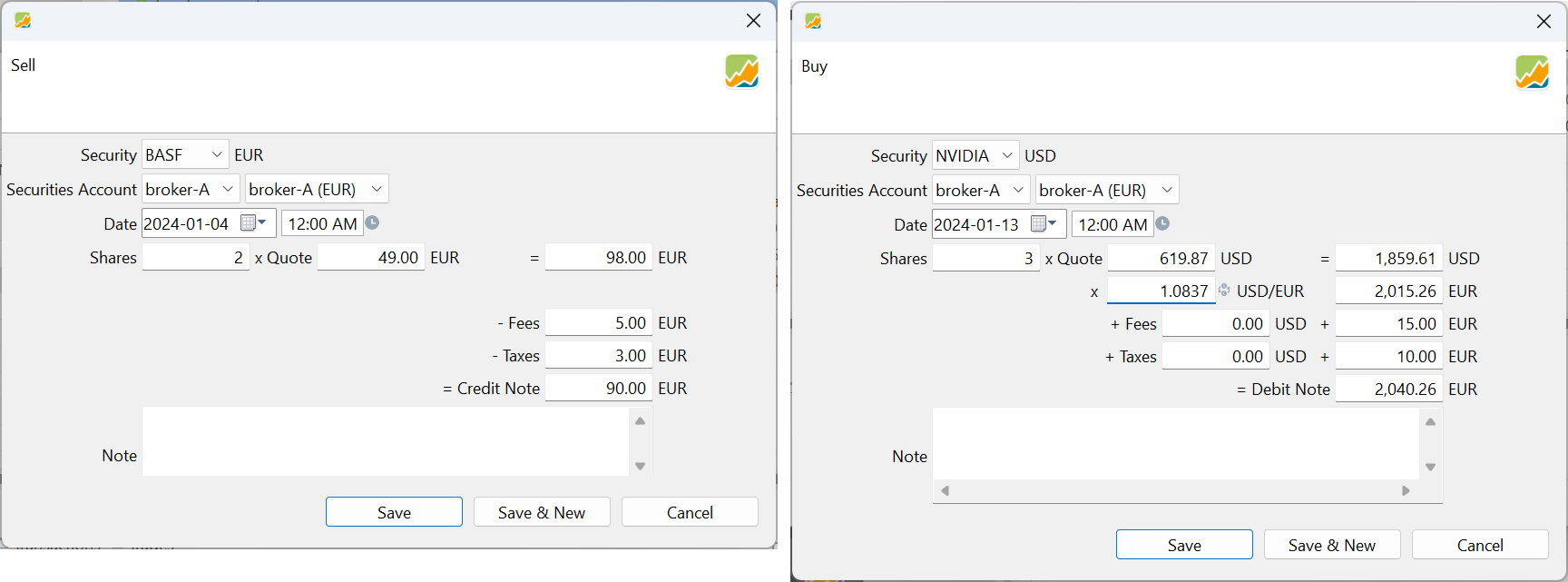
Figure 11 displays the first step of the Import wizard. Be sure that the type Portfolio Transactions is selected in step 1; otherwise an error will occur in step 2.
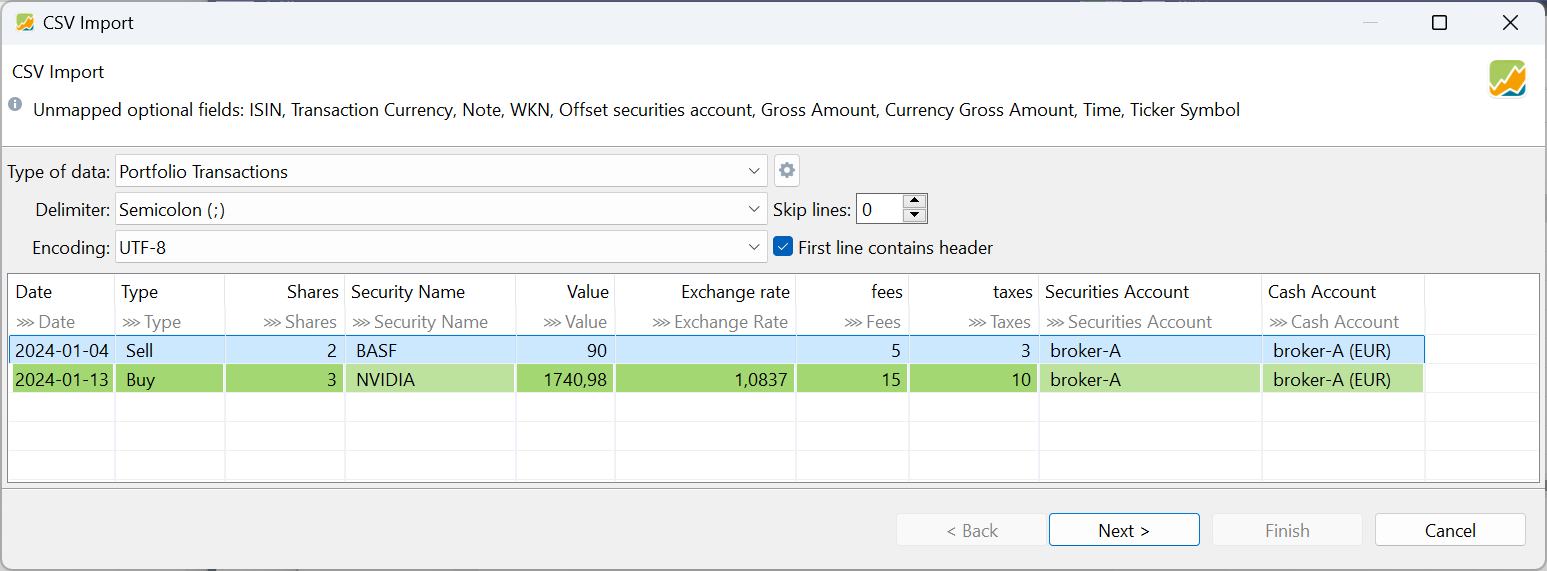
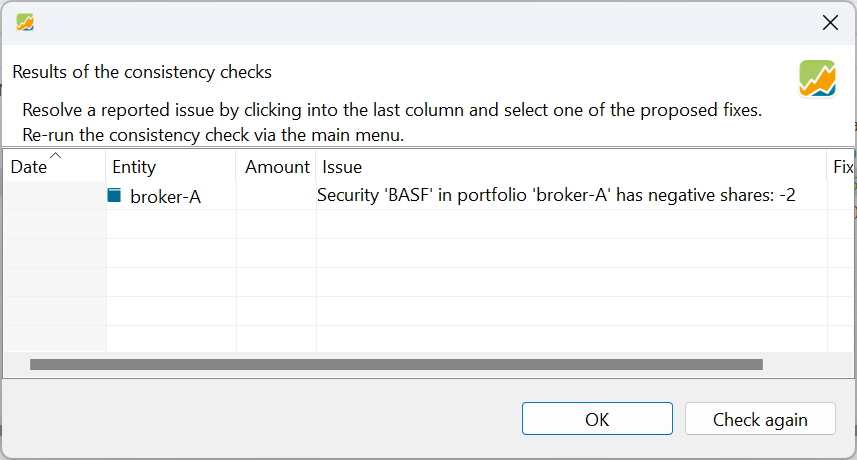
A consistency check is made, for example, to ensure that you don't sell more securities than are available in your portfolio (see Figure 12).